2 R and R Studio
Summary
A list of commands in the console forms a program.
A file extension is a few characters at the end of a filename that determine what type of file it is. A common file extension is
.txt, which means that the file contains only text characters.One way to keep a program is by using a script, a text file that lists the commands to be executed in order. Use the
.Rfile extension for these files.The source function will execute each of the commands in a script.
A R Markdown file contains both code and material intended to be printed alongside them in the output. It is a variation of a markup language called markdown designed specifically for the R environment. Such a file can be easily transformed into a standard, professional looking document that includes R code execution. Use an
.Rmdfile extension for these files. Inside R Studio, an R Markdown file acts as a notebook, where code chunks can be executed individually, and the results displayed.
2.1 Recording code
R is not just a programming language, but also gives a way of presenting results that allow analyses to be checked and modified. This can be accomplished by using scripts to record the commands you use, and R Markdown to build a publishable work.
2.1.1 Scripts
In the console in R, you can type three commands, one after another into the console as follows.
## [1] 8Instead of typing in these commands directly, these commands could all be placed into a file that has the form filename.R. The ending .R is called a file extension, and in this case indicates that the file is an R script.
The following code uses the write_lines function to write out to your local file directory a file test.R that has the three commands listed above in it.
After using this command, the source command can be used to execute each of those three commands.
## [1] 8A big difference between the console and a script is that in the console
x + ywill also print out 8, but it will not in a script file. Instead useprint(x + y)to have the result printed out from a script.
A script is a collection of commands that will be executed one after another.
In the example, write_lines was used to build a script file, but this is not great for editing purposes. In R Studio, we can create a file for a script by using the menu command \[ \text{File } \blacktriangleright \text{ New File } \blacktriangleright \text{ R Script} \]
By default, R Studio will open up a window in the upper left portion of its area. Commands can then be typed into this area. For instance, suppose I put
x <- 4
y <- 5
print(x + y)
into this script file. Nothing happens, except the lines of the file get numbered 1, 2, and 3 (in the gray area to the left of the code) as you type the lines.
To tell R to execute these lines, it is necessary to use the source function. This can become cumbersome if it is needed every time there is a change in the script file. There is a shortcut that is very helpful. Above the code there is a checkbox with the label `Source On Save’. When you check this box, every time you save the file (with Ctrl-S or Cmd-S for Windows/Linux and Mac respectively), the script will automatically be executed in the console. The picture below is of the upper left corner of the R Studio window.
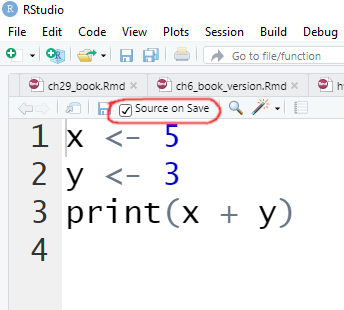
Let’s give it a try! First, be sure the checkbox is checked. Then use the menu command
\[
\text{ File } \blacktriangleright \text{ Save }
\]
to save the file (or as stated use Ctrl-S or Cmd-S). Upon saving the file, in the console below the correct source command has been given. To check that the commands actually executed, just type x and y directly into the console.
When you save a file, it is usually given a file extension, which tells what type of file it is.
The file extension comes at the end of a filename, and tells the operating system what type of file it is.
If you do not specify a file extension when saving an R script, the default is .R. This convention will be used here for R script files throughout.
2.1.2 Why you should use scripts
Scripts act as a scientific record of your analysis. They record exactly what you did and how you got your results from your data.
Now, if someone else (say a researcher following your work) is trying to extend your analysis or apply it to another area, they do not have to guess what exactly you did. They can see each and every step exactly. That is why it is important to keep track of your procedures precisely.
If a scientist has to type in commands each and every time we wanted to execute them, research would be nearly impossible! On the other hand, just having the commands listed out in a script is also typically not enough. It is important to have the ability to write comments using regular English, as well as be able to write mathematical equations to illustrate a model or a analysis.
2.2 R Markdown
In R Studio, the way to accomplish this is to use an R Markdown file. Such a file allows us to accomplish several tasks.
It allows us to record (in a human readable format) the commands we gave R in analyzing our data.
An R Markdown file can be used as a notebook, breaking our code into smaller groups called code chunks that help us manage a large project by breaking it into smaller pieces.
The file can be knit to create a professional looking document in a variety of formats, including HTML (for web publishing), .pdf (for general reading), and Microsoft Word (which can help with collaboration efforts.)
2.2.1 Creating an R Markdown file
To create an R Markdown file in R Studio, use \[ \text{ File } \blacktriangleright \text{ New File } \blacktriangleright \text{ R Markdown} \] which will create a new file.
The default file extension for R Markdown files is .Rmd.
When you create a new file, R Studio will ask for a title, the author name, and whether or not you wish to create an HTML, \(\LaTeX\), or Word document. We will stick with HTML for now. R Studio will open a text editor and create a sample file for you to get started. For instance, if I put in Example for the title and Mark Huber for the author, the file created (as of 2019-09-02) will have a header that starts with three hyphens --- and ends with three hyphens. If I erase everything that follows the header in the default file, I will have something that looks like this.
---
title: "Example"
author: "Mark Huber"
date: "September 2, 2019"
output: html_document
---
2.3 Adding code to an R Markdown file
Code in R Markdown files are placed in groups called a code chunk. Such code is indicated by typing three backticks and the name of the programming language. To use R, start with ```{r} as the first line. Then on subsequent lines type the commands you wish to execute, and then finally on another line by itself, type three more backticks ```. For instance, I could create the example from earlier using the following.
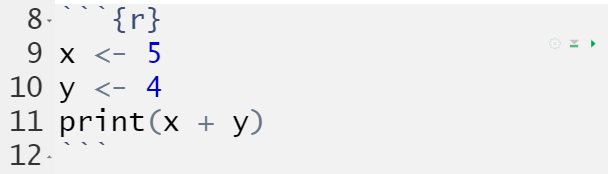
The backtick character `
(aka back quote, acute, grave, and left quote) is typically found on the same key of U.S. keyboards as the tilde symbol (\(\sim\)). It should not be confused with the apostrophe'a.k.a. the right quote.
Note that the code chunk has been shaded. There is a little green arrow at the far right of the code chunk. This stands for play, and when you press it the commands inside the code chunk will be executed. The results of the commands will appear below the code chunk. You can also type descriptions in the text above or below a code chunk to describe what is going on. In this way, you create a notebook of executable code.
2.4 Creating a document
R Markdown files do more than just execute code! An R Markdown file can also be turned into a document for communicating your results to others. Good communication exhibits the following properties.
Complete. Someone reading your work should be able to replicate what you did.
Compatible. You want to use a standard format such as HTML, pdf, or Markdown to communicate your results so that they can be viewed by the widest possible (perhaps non tech-savvy) audience.
Professional. You want output that is neat, well-organized, and looks good.
To those ends, we use a process called typesetting to build a professional looking document.
Typesetting is the process of arranging text for publication.
This term typesetting comes from the earliest days of the movable type press. In these presses, the types where small pieces of carved metal that were painstakingly set in place to form the text to be printed.
Typesetting should result in a document that is pleasing to the eye. This is usually accomplished using a markup language. This is a computer language that is quite different from the ones considered earlier. The purpose of a markup language is to describe in general terms how a document should be typeset. A markup language has commands that allow you to emphasize words, add a bit of color. A markup language should also be able to indicate the start of new sections, subsections, and paragraphs. Markup languages also can be used to create a list of bullet points or numbered points, create references, add tables, and add images to the document.
A markup language uses commands to determine the typesetting for a document.
A word processor such as Microsoft Word is often called WYSIWYG which stands for what you see is what you get. When someone types words into such a program, they directly see what the output will be. Because of the need for this to happen instantaneously, Word processors are typically terrible at typesetting documents, hiding what is going on from the user, and are difficult to share.
On the other hand, in a markup language you enter simple text that could be typed using only the standard keys on a typewriter. You use commands in order to indicate when a word should be emphasized or is a section heading. The software then takes the result and builds a typeset document for you according to the rules of typesetting for your document. That way, if you change the rules later, the document is automatically reformatted for you without you having to go back and change a bunch of details. Usually you do not see the final typeset result until the software has completed its work.
The most commonly used markup language today is HTML, which stands for Hypertext Markup Language and is the language that webpages are usually written in. All major web browsers can interpret and display HTML files.
HTML (Hypertext Markup Language) is the primary markup language used for publishing on websites. It is an interpreted language.
In mathematics and the sciences, another commonly used markup language is \(\LaTeX\), because it is very good at typesetting documents that include mathematics.
LaTeX is a markup language that is extensively used in scientific and mathematical fields. It is a compiled language.
The final character in \(\LaTeX\) might look like a capital letter X, but it is actually the capital Greek letter chi (pronounced ki). Why does this matter? Because it is pronounced with a hard k sound, like in the word technical. If you pronounce it with an X, then you are talking about the latex in gloves or paint.
Most word processors have an internal markup language, but since the user usually cannot see it, they cannot directly make changes. The advantage of a markup language is that you can specify what you want to happen in a general sense, and then the language takes care of the details. For instance, if the user wants a new chapter, the markup language will take care of the numbering and table of contents for you without the need for the user to intervene manually and specify exactly the font and style of these types of elements.
2.5 What is Markdown?
Often the full control that comes with using a markup language is overkill. For this reason, John Gruber created a light markup language that emphasized ease of use and readability over the ability to do any possible thing. The result was Markdown. (Get it? Markdown is a lighter version of a markup language. That’s computer science humor for you in a nutshell.)
Markdown is a markup language that is designed with few commands in order to be easy to use.
The markdown language has been implemented in many different formats, the one that we will use here is the version implemented by RStudio, called R Markdown. If you want to learn more about how RStudio typesets R Markdown, go to https://rmarkdown.rstudio.com/.
Go ahead an open a new R Markdown file. Then we see the default file created by R Studio. It has several interesting properties.
The file starts with
---, then there are a few lines of text, and then---again. These lines are called a YAML header. YAML stands for YAML Ain’t Markup Language. This is an example of a recursive acronym, because it contains the word itself as part of the abbreviation. The contents of the header such as title and author should be self-explanatory. As the acronym tells us, YAML is not a markup language, instead it is considered a data serialization language because it is heavily dependent on the order and format of the text in the header.In the main file, begin a line with the
#character to start a new section.Begin a line with
##to start a new subsectionAs seen earlier, use
```to mark out blocks of code.
Serialization puts data in a simple form (often using text) where it can be easily read and extracted later.
YAML (YAML Ain’t Markup Language) is a serialization language that is used for the header of an R Markdown file.
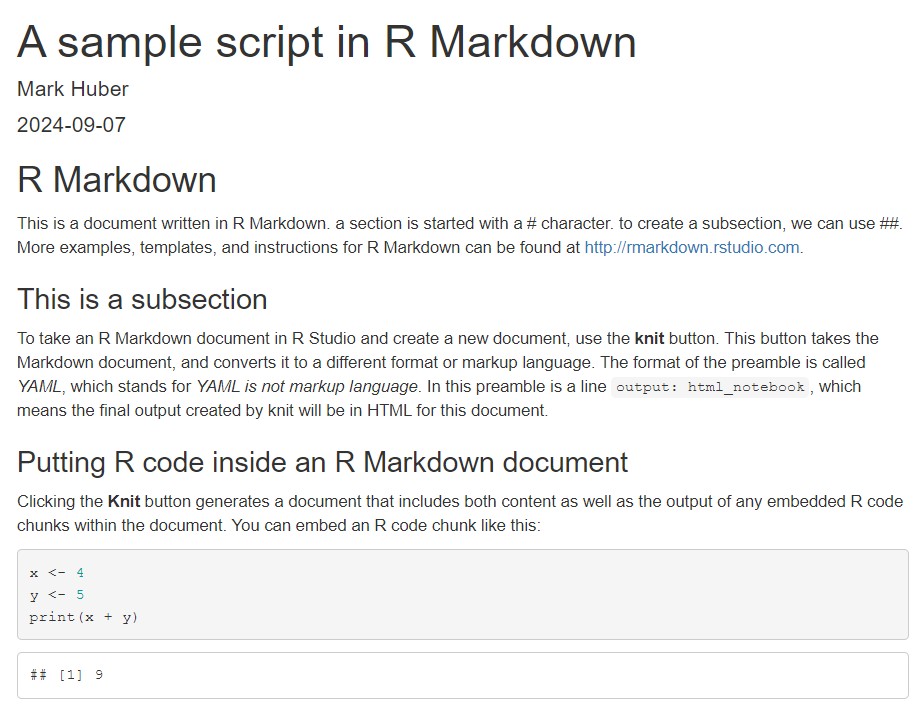
Note that in the interface to R Studio there is a button above the file called Knit. Press this button to compile the document, which turns the R Markdown file into an HTML file.
As an example, consider the following text.
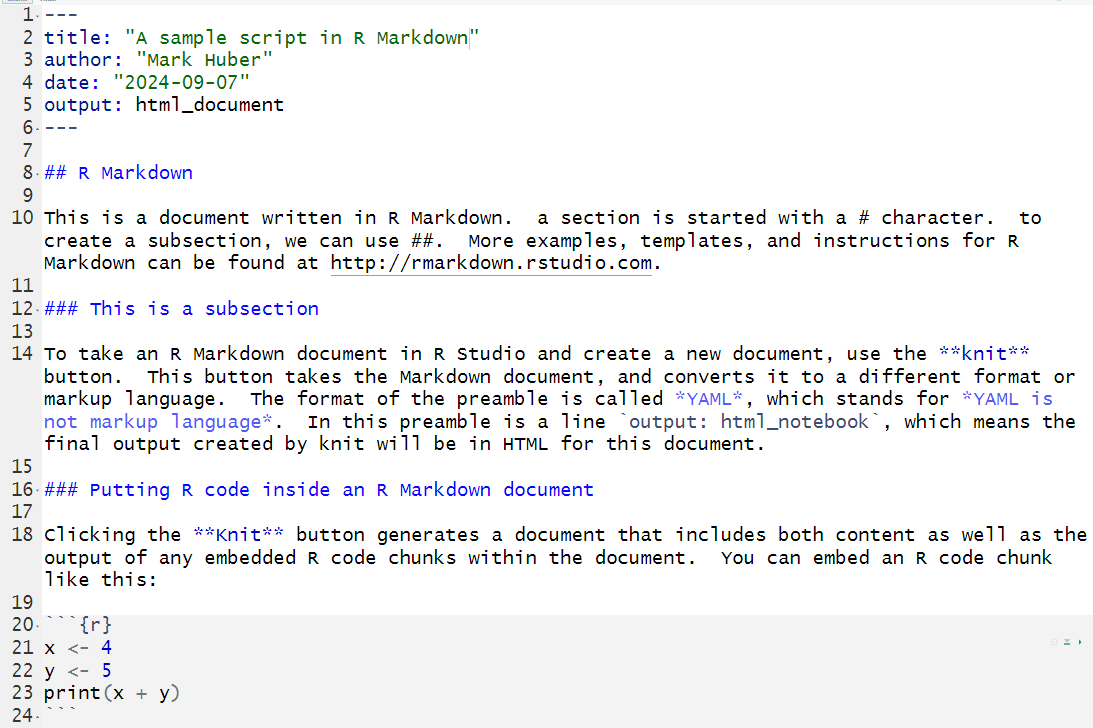
When knit, this produces the following output.
2.6 Markdown notation
Words can be emphasized in a Markdown file by
putting a * character at the beginning and end
of the word. So *word* will be emphasized in
the output as word. Put a word in bold in
Markdown by surrounding it with two asterisks,
**. So **word** will knit to a bold
word in R Markdown.
2.6.1 Mathematics with \(\LaTeX\)
When writing papers and descriptions, it is
often necessary to add in mathematical equations
and definitions. The most popular typesetting
program in the scientific community for doing
this is called \(\LaTeX\). Fortunately,
it is not necessary to learn all of r latex_symbol(), as R Markdown allows you to use
the most important \(\LaTeX\) commands
directly.
\(\LaTeX\) allows for typesetting two
types of mathematical expressions. The first,
inline mathematics, is mathematics that is
within a paragraph. To create such an
expression, surround the expression with
delimiters \( and \). So \( a^2 + b^2 = c^2 \) generates the mathematical expression:
\(a^2 + b^2 = c^2\).
The second type is called display mathematics,
and it puts equations on their own separate
line. Here the delimiters \[ and \] are
used. For instance, \[ a^2 + b^2 = c^2 \]
gives the output
\[
a^2 + b^2 = c^2.
\]
2.7 What can go wrong?
It is very easy for commands in R to go wrong. A misplaced parenthesis or comma and you might get an error message, or even worse is when the command runs without an error, but does not do what you expected it to.
One way to detect such errors is to type the
command directly into the console. Usually the
console in R starts with a > character,
indicating that it is ready to accept a new line
of input.
When you forget to close a right parenthesis
), the R console will respond by starting the
next line with a + character, indicating that
the console wishes for you to add to the
previous line and finish your command.
In R you can always get help for a function by using ?function.name.
Questions
The following command in R assigns a vector of length 4 to the variable x:
Find the sample average of the vector
xwith themeancommand.Find the sample standard deviation with the
sdcommand.Use
sumto add the values in the vector together.Use
x^2to get the vector whose components are the square of the entries inx.Find the sum of the squares of the values
x.
Consider the built in data set ToothGrowth in R.
What are the units on the dose of Vitamin C? (Remember that you can information about a command or variable in R by typing a ? followed by the name of the thing you are trying to get help about.)
Consider the built in data set ToothGrowth in R.
Use the
summarycommand to determine the mean length that the teeth grow in the guinea pigs.Use the
summarycommand to find the median length that the teeth grow in the guinea pigs.Use
plot(ToothGrowth$dose, ToothGrowth$len)to see how the length of the teeth varies with Vitamin C dose.From this plot, would you say that increased Vitamin C results in greater tooth length?
The command
y <- runif(n = 10,min = 0, max = 1)will generate 10 uniform random numbers from 0 to 1, and place them in the vector y.
Modify this command to draw a million uniforms.
Find the sample mean of your uniforms.
Find the sample standard deviation of your uniforms.
[Note: most functions in R have default values for parameters that are used if none are supplied. For runif, the default is for min to equal 0 and max to equal 1. Hence y <- runif(10) does the same thing as the statement above.]
You are allowed to use Google (or DuckDuckGo if you wish to maintain your privacy) to search for R commands that you are unfamiliar with. For instance, try using your favorite search engine to answer the question: How do I indicate that a command in R is a comment?
What is the name of a section of an R Markdown document that contains code?
Unlike some languages, R does not require indentation to operate correctly. However, it does help to read code. In fact, here are two things that greatly improve readability.
Use indentation when a command goes into a new line. For instance
becomes
when written on multiple lines. Each indentation is usually two spaces or one tab.
Use either an underscore
_or.or capital letters when writing function names with more than one word. For instance, instead ofuse either
or
or
to name the function.
Now for the problems!
Fix the following code by writing using indentation.
Fix the following code by naming the function better.
Suppose z <- c(1, 2 , 3, 4).
What does
6 * zgive?Suppose
w <- c(4, 0, 2, 1). What doesz * wgive?Suppose
x <- c(1, 2). What doesz * xgive?
What symbol makes a superscript in Latex?
Consider nesting combine statements. What does c(c(5, -1, 2), c(2, 3)) return in R?